
A student stands in a crowded Metro coach, one hand on the rail, the other holding her phone, trying to find a journal article before her stop. The filter panel sits on top of the results, the table of editions scrolls sideways, and the "Open" button is tucked under the browser toolbar where her thumb cannot reach. Most teams say they design for mobile. Mobile-first is the way of working that prevents this screen, by starting from the smallest layout and adding to it.
The order you design in changes the page
Search engines index the mobile version of your pages, so what appears on a phone is what Google reads. A phone also forces decisions a wide screen lets you put off: what the main action is, what comes first, what can wait until there is room.
Desktop-first designs reach the phone by hiding things. Mobile-first designs reach the desktop by adding things when there is space. The second tends to produce simpler pages and less CSS, because the base styles are the small-screen styles and wider layouts are layered on with min-width media queries. We prefer it for that reason alone; the stylesheet is still readable a year later.
- Full layout drawn first
- Parts hidden on phones
- Overrides pile up
- One column, priorities set
- Columns added with min-width
- Base styles stay small
Starting small means the overrides go toward more space, where they are easier to manage.
Breakpoints, the screen widths where the layout changes, show the difference well. Teams often copy the widths of a few popular phones and tablets, then watch the layout break on a device that falls between them, and in India a great many devices fall between them. Widen the browser slowly instead, and add a breakpoint wherever the content starts to look cramped or too sparse, whatever width that turns out to be.
What a phone in the hand needs
Put the most important content and action first in the reading order, because on a phone the user is not reading, they are scanning down a single column. Use fluid grids and flexible units so columns resize instead of jumping. Let images and video scale inside their containers, and serve smaller files to small screens.
Give touch targets enough size and spacing for a thumb, and keep the main action in the lower half of the screen, where a thumb reaches without shifting the phone in the hand. Make text readable in sunlight: enough size, enough contrast, no light grey on white.
Then the weight of the page. Phones are often on slower networks. A dealer in Ludhiana checking stock on the showroom floor is on 4G that comes and goes, and a page that loads instantly on office fibre may never finish for him. Compress images, remove unused code and cache what you can. Our post on the metrics that make a website high-performing covers how to measure it.
Forms are where phones hurt most
A form that asks for a ten-digit mobile number and shows a full QWERTY keyboard makes the user hunt for the number row with one thumb. The fix is one attribute on the input, and it is the cheapest improvement on most sites.
| Field | Input settings | What the phone shows |
|---|---|---|
| Mobile number | type="tel" |
Number pad |
| PIN code or OTP | inputmode="numeric", autocomplete="one-time-code" for OTP |
Number pad, OTP suggested from SMS |
type="email" |
Keyboard with @ and . | |
| Amount | inputmode="decimal" |
Number pad with a decimal point |
Keep labels above fields, not inside them as placeholder text that disappears as soon as she starts typing. And check what the on-screen keyboard covers: if it hides the "Submit" button, she has to close the keyboard to find it.
Mistakes that cost the most
The most common one is testing only by resizing a desktop browser. That misses touch, real network speed, the on-screen keyboard, and browser toolbars that change the viewport height as you scroll. Data-heavy screens come next. Tables, dashboards and filters get designed for a wide monitor and then squeezed, so the one column the user needs, the outstanding amount in a receivables list, is the one that gets cut off.
Content that exists only on desktop is a quieter problem, since a section hidden on mobile is also less visible to indexing. Fixed headers and sticky offer banners take a third of a small screen. And accessibility gets treated as a separate ticket, when zoom, contrast and focus order matter at least as much on a small screen as on a large one.
eLibsy, a search-heavy product on every screen
eLibsy is a digital library platform for academic institutions, built as a Next.js web application with responsive design. Its scope includes search and filters, reading lists, notes, citations and community features. Students use these on phones as well as laptops, and the project sets an accessibility target of WCAG 2.1. The documented brief calls for an experience that works on any device with no heavy training.
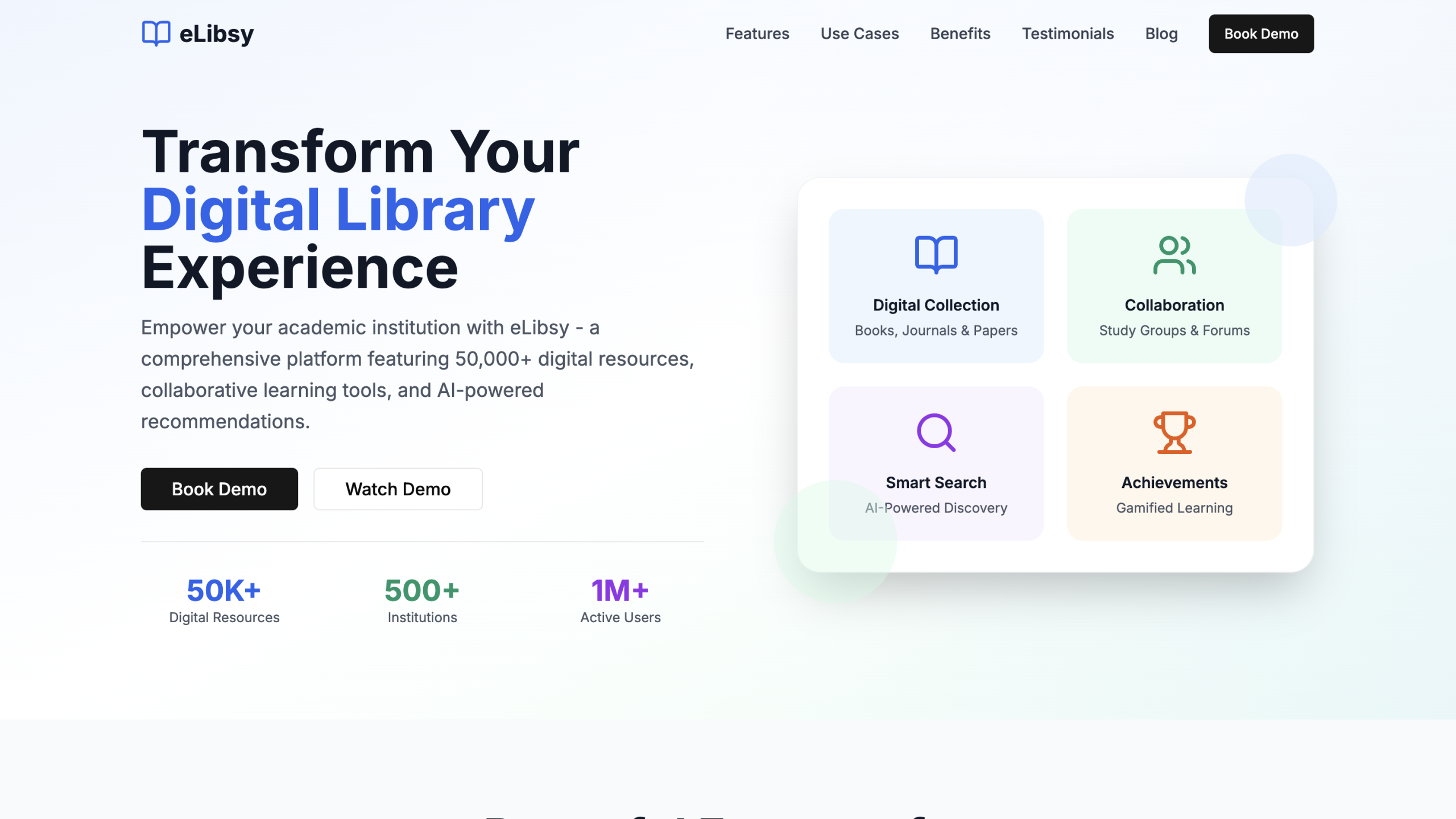
A product like this tests mobile-first thinking hard, because search results, filters and long reading lists are exactly the content that is difficult to fit on a small screen. The decisions that follow apply to any search-heavy site. Show the search box first. Put filters behind a clear "Filter" control instead of beside the results. Keep lists readable in a single column, and let the student reach the item she searched for in one tap. On the second visit, her reading list should be one tap from the home screen.
Check what the page sends as well as how it looks. A page that looks right on a phone but downloads a desktop-sized hero image over mobile data has not been designed for mobile in any useful sense.
Run this review on a real phone
- Open the five most important pages on a mid-range phone, on mobile data.
- Complete the main task once, standing, with one thumb.
- Rotate the phone and set text to the largest size.
- Fill every form and note which keyboard appears for each field.
- Check that everything visible on desktop can be reached on mobile.
- Run Lighthouse on mobile settings and note the slowest resource.
Then hand the phone to five people who match your users and watch them do the main task without help. If you are planning a rebuild, our web development page describes how we approach it. Start with item two this week. If the main task is awkward with one thumb while standing in a queue, fix that before any other polish.